Brevo Setup & Usage Guide
- Introduction
- Add SendForensics as a contact in Brevo
- Activate the Brevo integration within SendForensics
- Enable automated template triggering
- Enjoy using the new workflow!
Note: The ESP's API can change unexpectedly from time to time, and there may also be variations within individual ESP accounts. If you are having any trouble connecting or with integration features, please raise a ticket with our friendly Support team who will help you through it.
1. Introduction
The SendForensics system needs to become another recipient of your emails (in the same way as any other customer) to be able to analyze your deliverability properly:
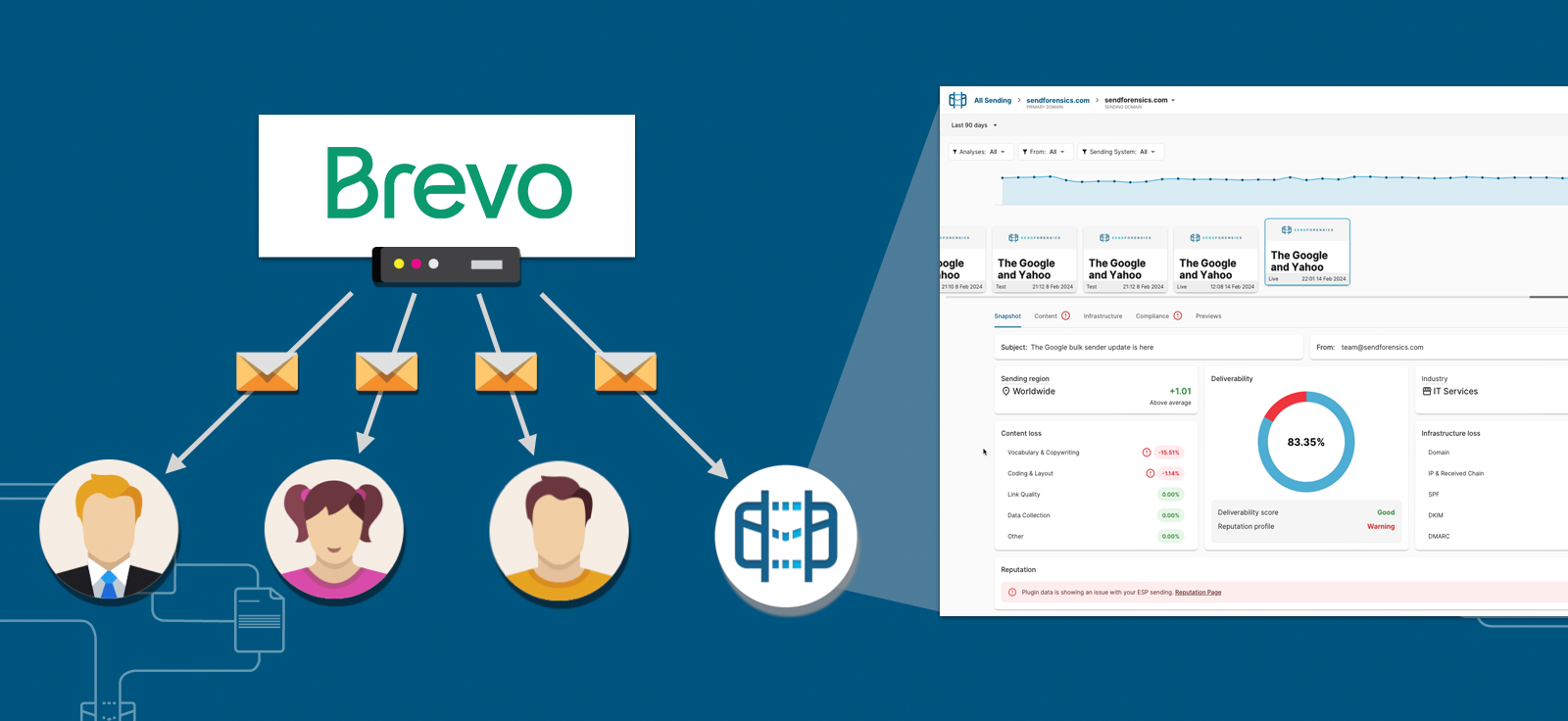
So when you send a campaign email (one to many), you will need to include your unique SendForensics analysis address (Account > Addresses) in the list of recipients. For transactional/marketing-automation type emails (one to one), you can use the automated template triggering functionality so that templates are automatically sent to your unique SendForensics analysis address on a daily or weekly basis.
The integration then allows the automated analysis of your Brevo engagement data* to complete the deliverability picture:
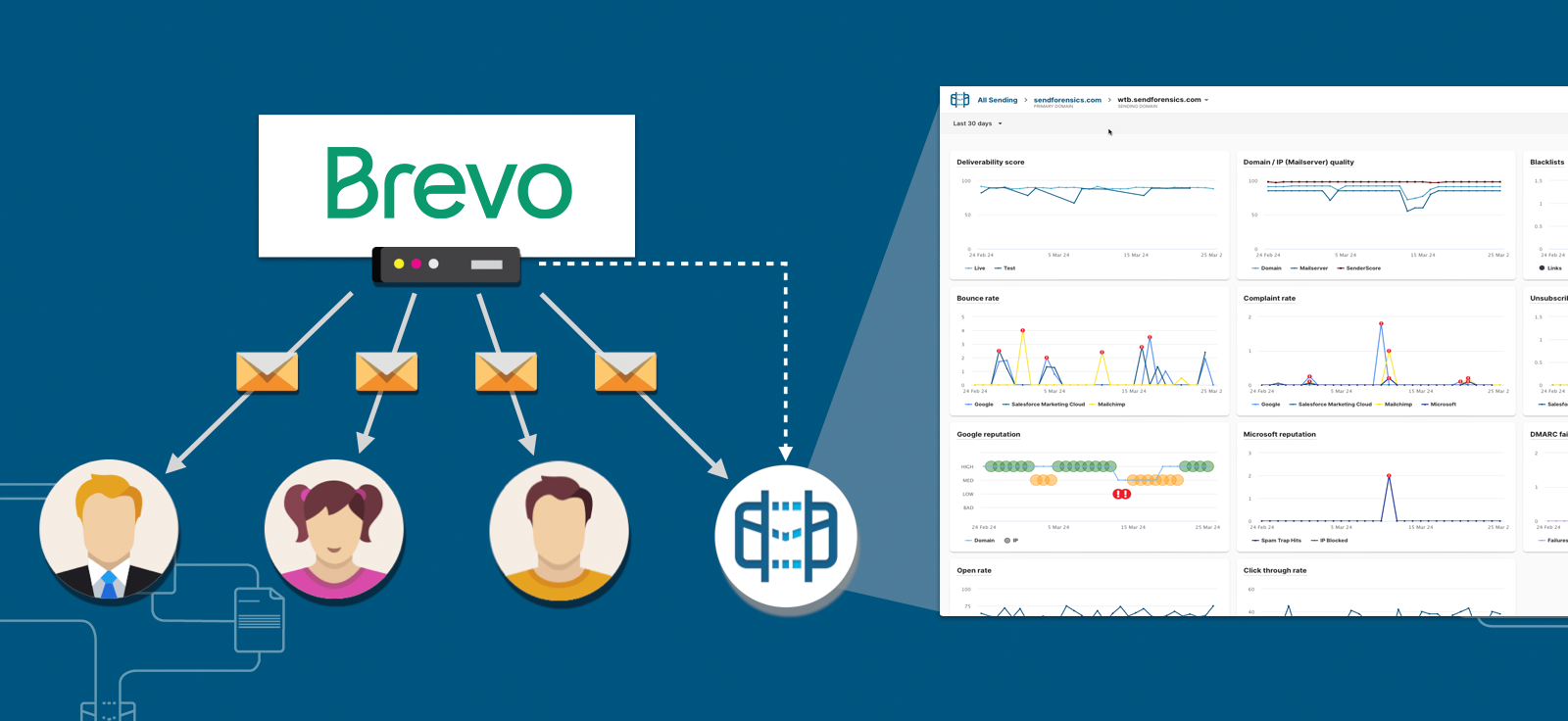
*Anonymous, aggregated email marketing metrics containing no personally identifiable information (PII). More information »
2. Add SendForensics as a contact/recipient in Brevo
First locate your unique SendForensics analysis address within your SendForensics account (user menu > Addresses):
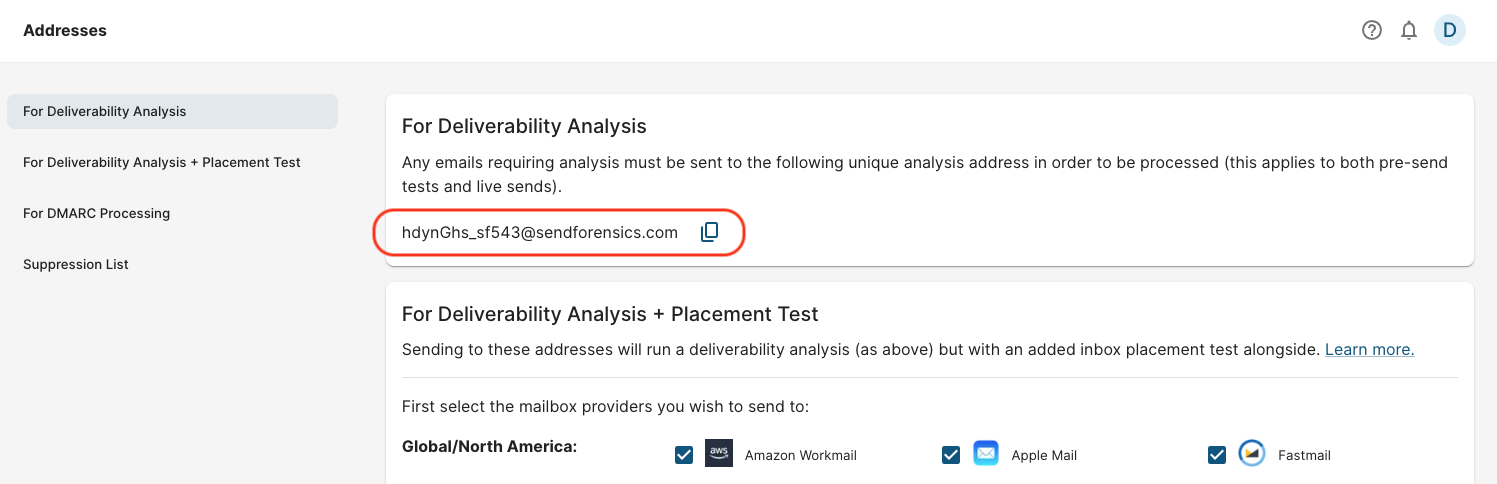
Now copy this unique analysis address and add it as a new contact in Brevo.
We would suggest creating a new list/segment just for this contact, calling it something recognizable such as 'Deliverability Testing' so it can be easily included in all live sends, and also used for pre-send tests.
Now whenever you send an email campaign with Brevo, always include this list/segment/contact and the SendForensics system will receive a live copy for analysis.
3. Activate the Brevo integration within SendForensics
To enable the Brevo integration, you will first need to generate an api key in your Brevo account.
Next, login to your SendForensics account, visit the Domain Settings page. Click on the desired domain, go to "ESP Integrations", then "Add integration" and select "Brevo". Paste the API Key and click Activate integration.
On successful activation, the system will pull in the engagement data for all campaigns (after the date of activation) that have a corresponding analysis in the system (by being a recipient as per Step 1. Add SendForensics as a contact in Brevo).
The system will also attempt to pull in daily engagement metrics for any transactional/marketing-automation (one-to-one) sending from this particular sending domain. You can switch this off using the "Enable for this sending domain" switch if:
- You do not use this ESP for transactional/marketing-automation sending, or
- If you are sending your transactional/marketing-automation sends from a different sending domain. In this case then you will also need to activate the integration separately for this other sending domain (you should be able to use the same API key).
Note: Engagement data is pulled in for analysis once per day, so there may be a delay between activating the integration and receiving the first batch of data.
4. Enable automated template triggering
If you are also using Brevo to send transactionals and/or marketing-automation messages, you can automatically trigger the templates on a daily or weekly basis for continual analysis and monitoring by the platform.
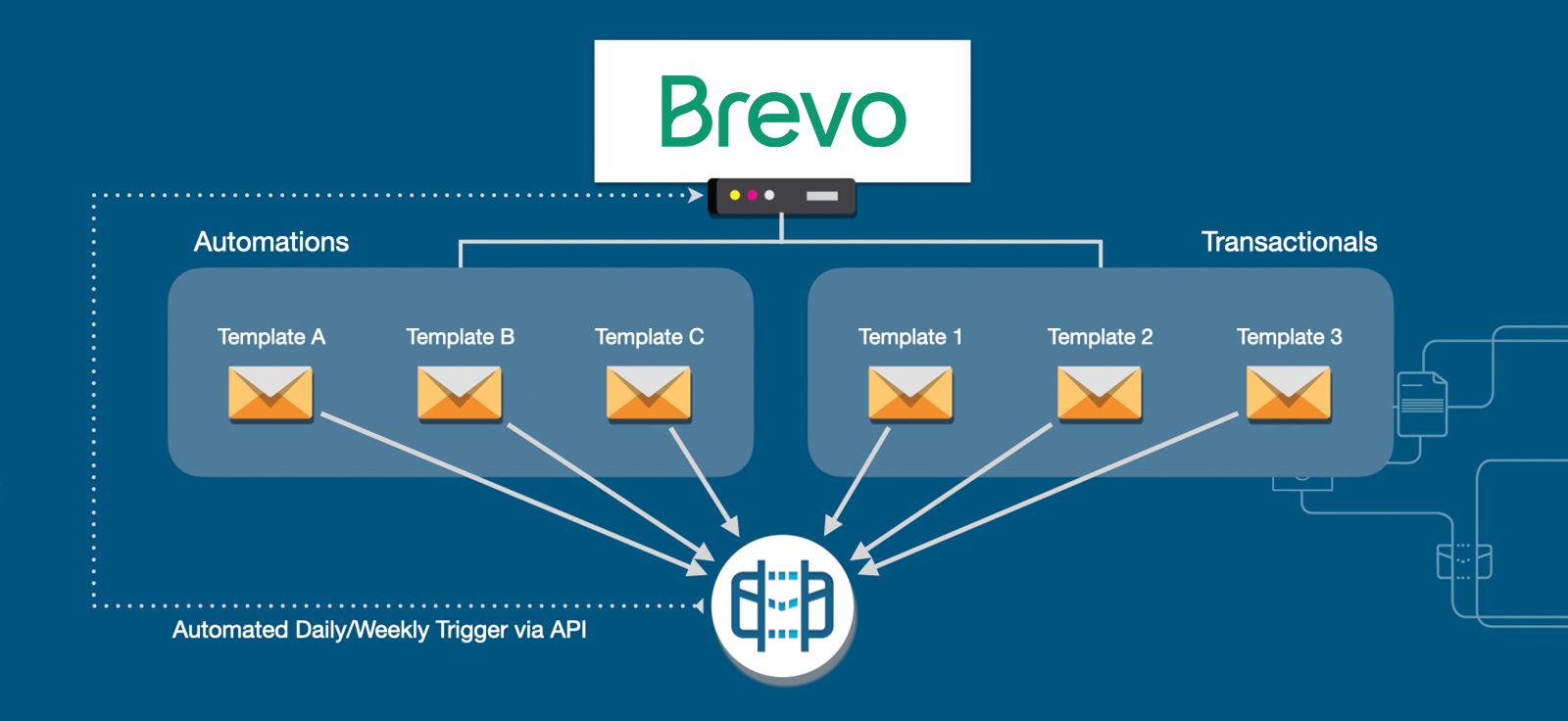
Enter the details of the first template, with some sample variables if required, then try a test send using the "Send test" button. This should successfully trigger an email using this template to be sent to the platform. You should get a new message notification from the envelope icon on the top right of the screen. Click this to view the analysis.
If you are happy with the test send, then simply select the sending frequency (daily or weekly) and an email using this template will be automatically sent into the platform for analysis either daily or weekly.
Set Alerts
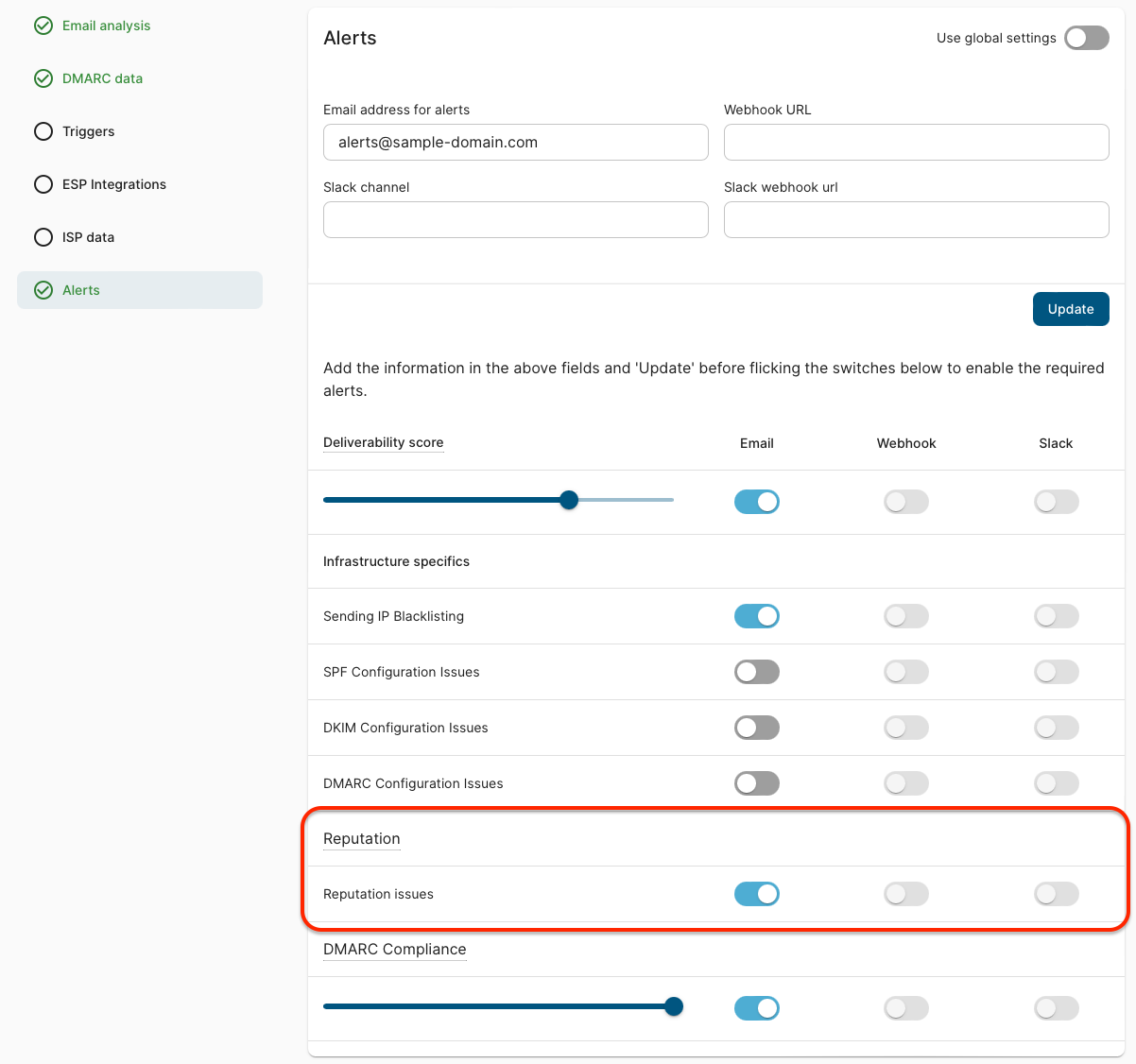
Set automated alerts based on the results of the analyses of these emails received (including the analysis of your live engagement data from these transactional/marketing-automation chanels). These can be set either per sending-domain or globally on the Domain Settings page, and will make sure you know immediately if there is a problem with this sending channel:
Enjoy using the new workflow!
5. Campaign sends (one to many)
Each time you create a new campaign and are ready to send live, first send a test to your unique SendForensics analysis address for pre-emptive deliverability analysis.
After receiving it, the system will process your email and display the full deliverability analysis results within your (SendForensics) dashboard. It will be marked as a 'Test' send where detected (if it is mistakenly marked as a 'Live' send, use the Test/Live switch to correct it).
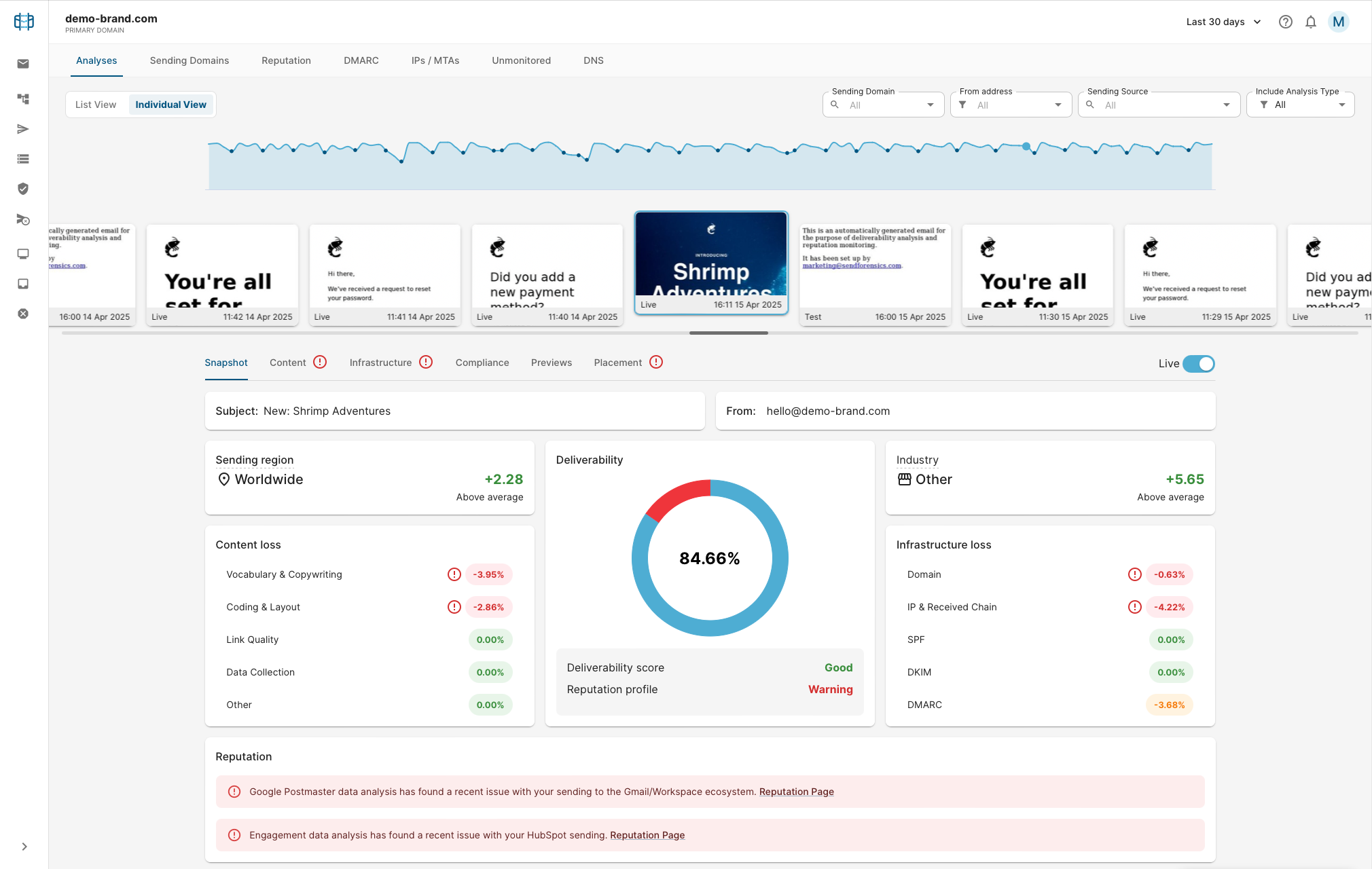
Cycle through the tabs (Content, Infrastructure etc) following the advice and recommendations to optimize the deliverability of your email as much as possible, re-testing as necessary. When you have reached a comfortable deliverability score (vs amount of work needed to improve it further), the campaign can be sent live.
The live send will also be processed (as a result of Step 1 above), and will additionally contain an analysis of your engagement data (live results):
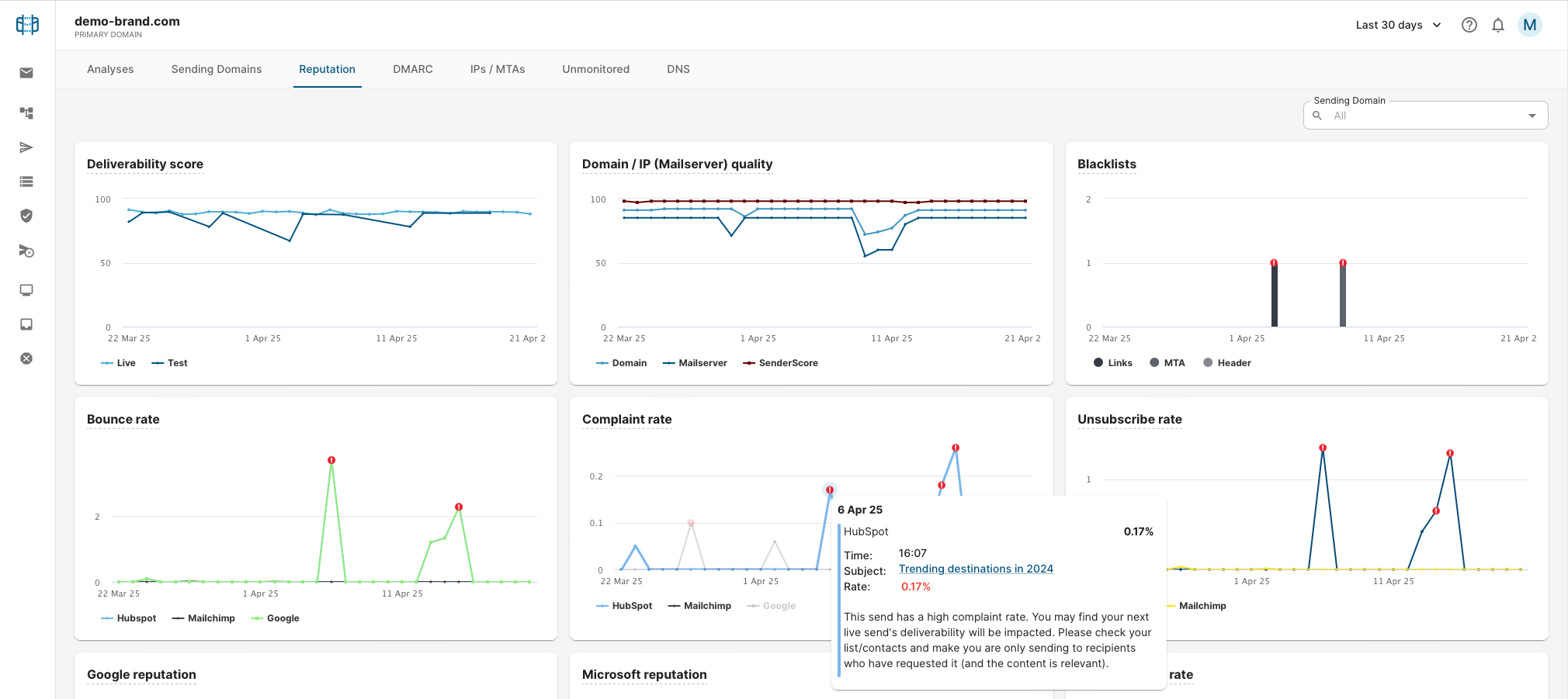
Click on any of the bounce/complaint/unsubscribe graph points to click through to the campaign email responsible for those results. Any reported issues with these metrics especially should be acted on and corrected before the next live send.
Transactional/marketing-automation sends (one to one)
Once the automated template triggering has been set up you should be able to see a constant flow of the various transactional and/or marketing-automation messages being received by the platform for analysis and monitoring.
Some suggested actions for maintaining effective deliverability for these streams are as follows:
- Respond to any alerts triggered by the analyses of these emails, especially alerts on high bounce/complaint/unsubscribe rates from the engagement data (where available).
- If you modify a template, or add a new one, be sure to send a test in for analysis by the system and correct any issues with the content or infrastructure before enabling for your live audience.