Data segmentation with multiple analysis addresses
Available on Agency/Enterprise plans
Multiple analysis addresses can be created and used across different teams, brand-assets or sending-sources to allow easier grouping and management of deliverability data. The data associated with each address can then be viewed exclusively in the dashboard by using the nickname assigned to it.
Setup & Usage
Only users at the Owner or Admin level can create or delete additional analysis addresses. Subusers can only view the analysis address(es) that have received emails from the domains to which the subuser has been allocated.
Adding additional analysis addresses
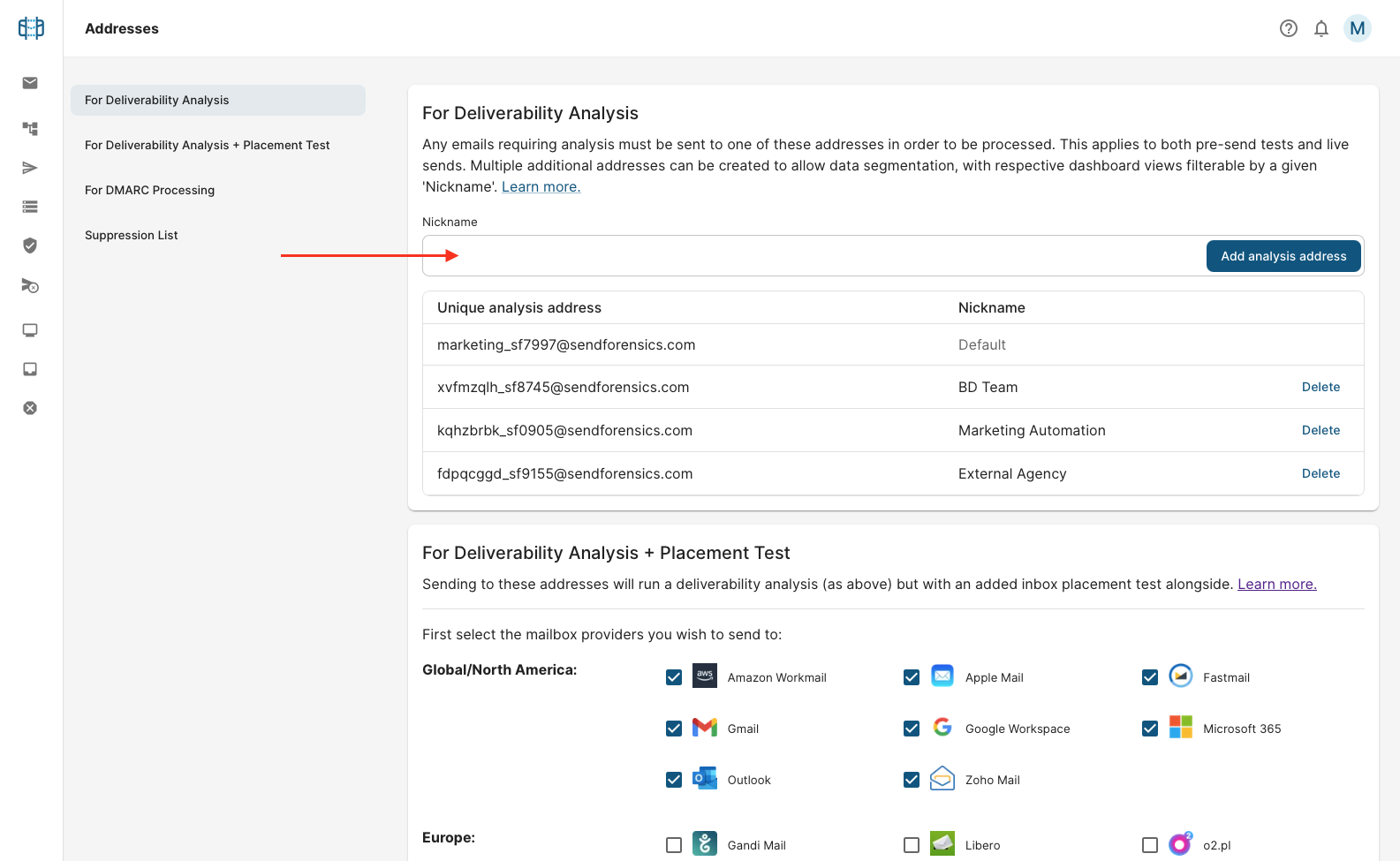
- (Owner or Admin users) Go to user menu > Addresses. You will see your existing default Analysis Address in the list - this cannot be deleted or changed.
- To add an additional address, choose a Nickname (which will be used as a 'view' in the dashboard for the data) and click 'Add analysis address. The address is then available to be sent to immediately, both for deliverability analysis only or with added placement test.
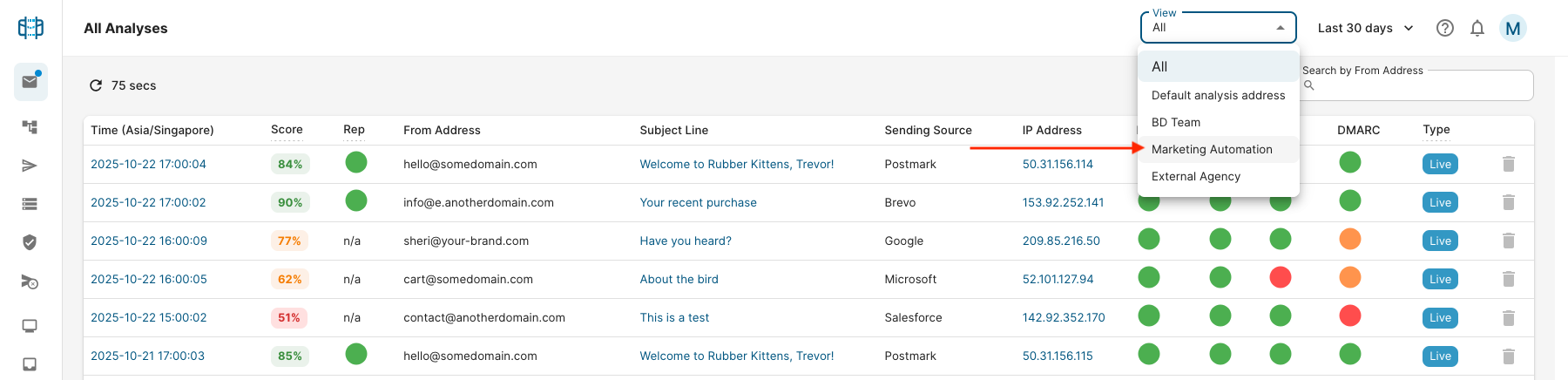
Viewing the data by analysis address
As soon as at least one additional analysis address has been created, a new 'View' dropdown filter will be available across the dashboard. Selecting a Nickname from the dropdown will display only the data associated with it.