Connect Google Postmaster Tools
Setting up Google Postmaster data for SendForensics analysis is a simple, two-step process:
Step 1. Add and verify your sending-domain(s) within your Google account.
Step 2. Authorise SendForensics to pull the Postmaster data in for analysis
If you do not have a Google Postmaster account, you can create one for free using any Google account (Gmail address or Workspace): https://www.gmail.com/postmaster/
If you experience any issues, have a look at the Troubleshooting section at the bottom of this page.
Step 1. Add and verify your sending-domain(s) within your Google account.
Log into Google Postmaster with your Google account details:
https://postmaster.google.com/
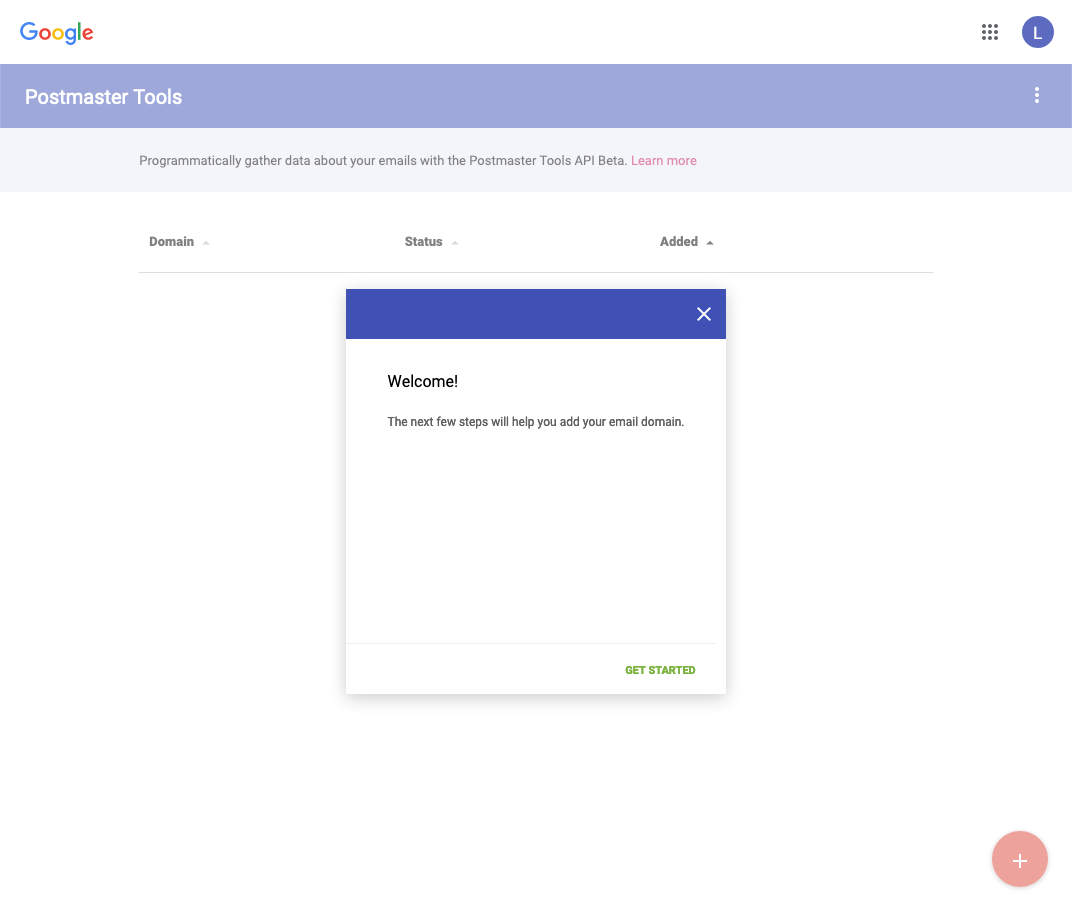
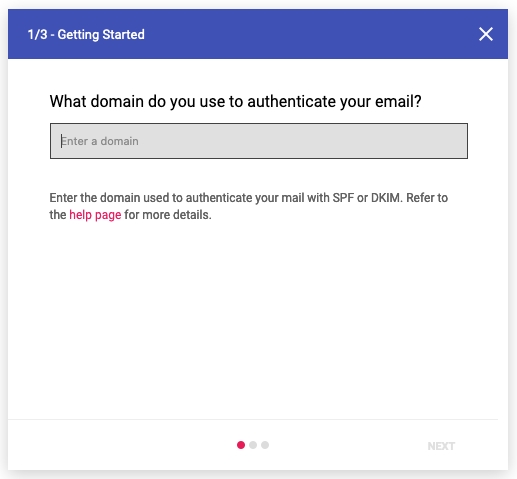
Click GET STARTED in the pop-up window, then add your sending-domain* in the next field:
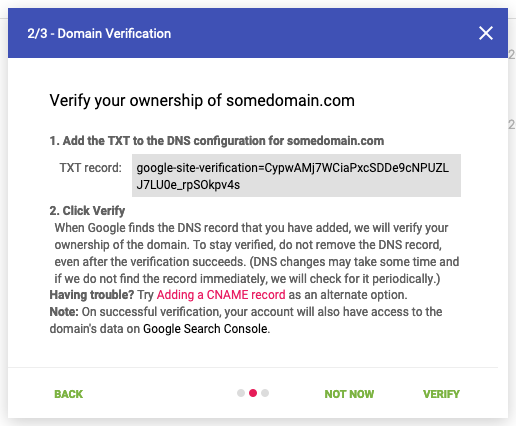
To verify that you own/control the domain, you will need to add a site verification code to your domain's DNS:
Once successfully verified, it will appear in your Postmaster dashboard as follows:

Note on Multiple Domains
If you have multiple sending-domains, you can either:
- Set them all up in one Google Postmaster account then SendForensics will pull the data in for all of them once authorised (see below), OR
- Split them up across multiple Google Postmaster accounts. You can then authorise (see below) each of these accounts separately in the Global Settings section within Domain Settings.
*If you are an ESP and are either DKIM-signing or SPF verifying each message with a sub-domain that you own (e.g. the MTA hostname), then each one of these sub-domains can be added and then verified yourselves. If you are a smaller provider and have direct control over customers' domains, then you may be able to add and verify your customers' sending-domains directly for more detailed information. If you are an ESP that offers custom domain authentication (i.e. no shared DKIM-signing or SPF verifying) this mechanism will not work, so the Feedback Loop method will have to be used instead. Contact Us for help pulling the Feedback Loop data into the system.
Step 2. Authorise SendForensics to pull the Postmaster data in for analysis
Now go (back) to Domain Settings within your SendForensics account. Click 'Authorise' in the Postmaster Tools section of the domain you would like to pull in data for.
You could also go to Account > Domain Settings > Global Settings and authorise there instead - it actually makes no difference as SendForensics will pull in data for any of your sending domains it finds within any Postmaster account you authorise with us.
Authorisation
You will be asked to allow SendForensics to see the email traffic metrics for this domain. These are aggregate metrics and contain no personally-identifiable information (PII).
Important: You must authorise with the same Google account that you logged into Postmaster Tools with.
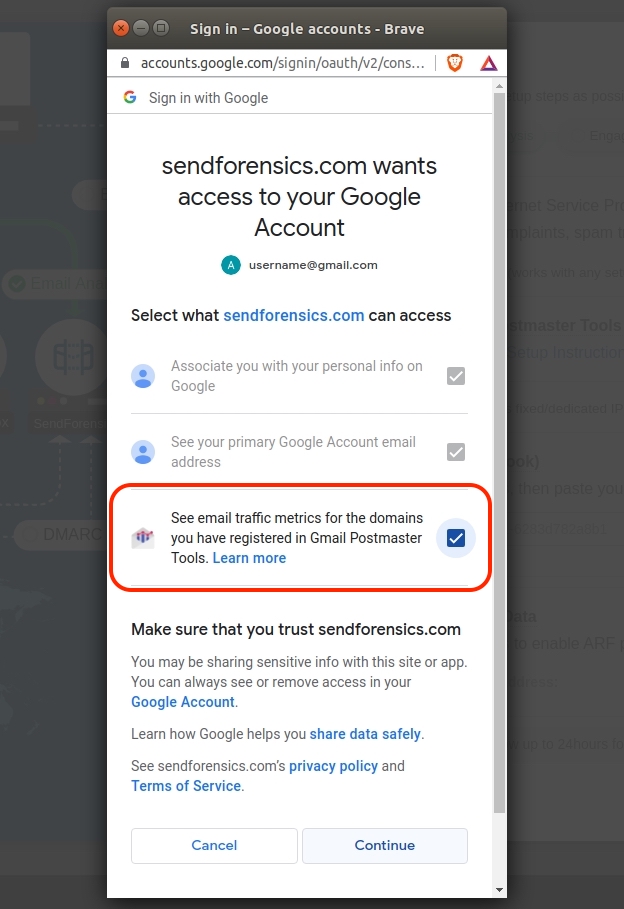
Click 'Continue/Allow', then if everything works out correctly, you will shortly be able to see the Google Postmaster data within the graphs in the Reputation dashboard and elsewhere in the system (if there is any data for the time-period in question - a minimum number of emails for a particular day needs to be received by Gmail/Gsuite addresses to generate data for that day, currently at least a few hundred).
Troubleshooting
I'm having an issue connecting/authorising
The most common reason for not being able to connect up Postmaster within our system is that the Gmail/Gsuite account that you used to login to Postmaster and set up the domains is different from the Gmail/Gsuite account that you then use to Authorise with in our system. Please double-check that the Gmail/Gsuite accounts match and re-authorise using the matching Gmail/Gsuite accounts if not.
Note: There is a current issue reported by several users when trying to authorise for the first time. Check whether you are logged-in with https://sendforensics.com or https://www.sendforensics.com (www) when you try and authorise. If it is the former, please sign out of https://sendforensics.com and sign in again using the full https://www.sendforensics.com path. Then when you try and authorize with Google it will work. We're investigating with Google why this has become an issue, but simply changing the sign-in path should correct it for now.
I seem to have connected/authorised correctly but I'm not seeing any data
This could be due to any one of the following:
- The system pulls in the data from Postmaster twice per day (at 3am and 2pm UTC time), so it may simply be a case of waiting until the next pull.
- Google only computes its data when more than a few hundred emails have been received from your domain over any 24hr period, so if you are not sending at least this many daily, the data will only show the next time you send a larger campaign.
- If there's still nothing it may be because the Google permission box to pull in the analytics during authorization wasn't ticked. In this case, you will need to authorise again and make sure it is ticked (see above screenshot of authorisation screen).
If you're still experiencing issues, then get in touch with our friendly Support team via the Helpdesk (Support > Helpdesk).